APK Download Stops
Check the internet connection and available storage. Delete the incomplete file before trying again.

P999 game download searches usually come from Android users looking for the P999 APK latest version. Several websites advertise different P999 versions and file sizes, so there is no reliable number that should be presented as the single latest version without inspecting the actual download.
This page explains how to review and install an APK without making unsupported claims about its publisher, safety or current version.
Downloading an APK from outside Google Play carries additional security risk. Google states that applications from unknown sources may expose a device or personal data to harm.
The P999 game APK is downloaded by opening a verified website on an Android phone, tapping the APK button once, scanning the file with Play Protect, allowing installs for that browser only, then installing and removing the permission. No version number is confirmed, so record details from the actual file. iPhones cannot install APK files.
| Item | Detail |
|---|---|
| File type | Android APK (.apk) |
| Latest version | Not published — check the actual file |
| File size | Conflicting across websites — check the download |
| Google Play | Same-name listings exist; connection not established |
| iPhone | APK files cannot be installed on iOS |
| Download cost | No payment should be required to download |
| Last updated | October 2026 |
Verify these details before placing them in an app table:
Do not copy this information from another P999 website. Record it from the actual file or verified publisher listing.
Check the complete domain before selecting a download button.
Avoid:
Tap the Android or APK download button once. Wait for the browser to finish downloading the file.
Do not press the button repeatedly because this may create duplicate or incomplete files.
Open the Downloads folder and confirm that:
Keep Google Play Protect active. Google says Play Protect checks applications from Google Play and other sources and may warn, disable or remove potentially harmful applications.
Cancel the installation when the device reports harmful behaviour or suspicious access.
Depending on the Android phone, open the installation prompt and allow the browser or file manager to install this specific APK.
Do not enable unknown-app installation for every application.
Open the downloaded file and review the permissions shown on screen.
A gaming app should not automatically receive access to contacts, SMS, accessibility controls, microphone, location or stored files without a clear reason.
After installation, return to the phone's security settings and remove the browser's permission to install unknown applications.
Check the app name, icon, registration screen, support information and payment instructions before entering personal details.
Use this checklist before installation:
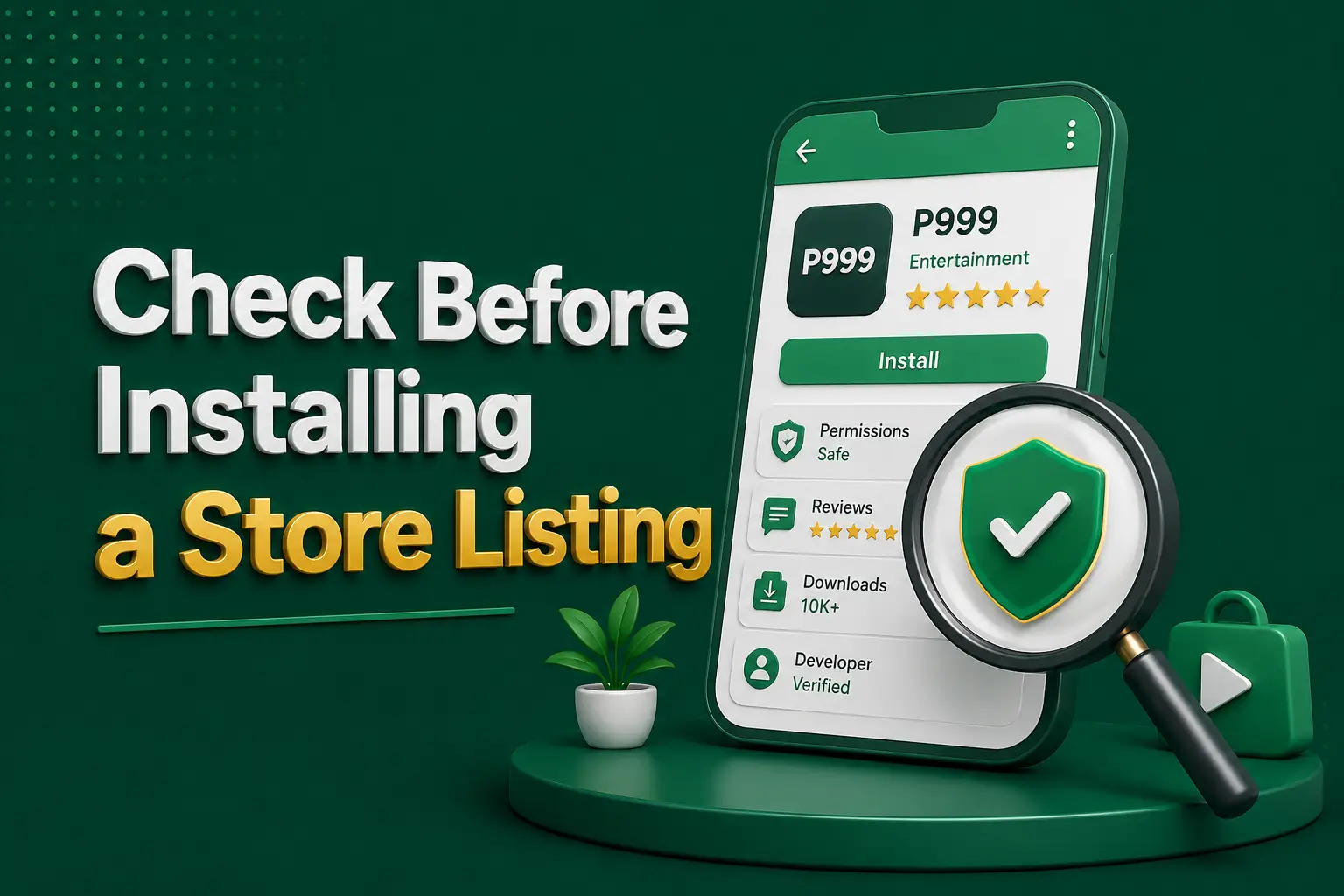
Same-name P999 applications have appeared on Google Play. Their descriptions focus on casual entertainment and do not clearly match the casino-style platform promoted on P999 websites.
A matching app name and icon are not enough to prove that two products share the same operator.
Check the internet connection and available storage. Delete the incomplete file before trying again.
Possible reasons include a corrupted APK, insufficient storage, unsupported Android version, existing app-signature conflict, security restriction, invalid package or damaged download. Do not keep downloading random copies from different sites.
Treat the warning seriously. Confirm the source and file identity rather than disabling protection immediately.
The location of the setting differs by phone brand. Open the app settings for the browser or file manager and look for permission to install unknown applications.
Restart the phone, check for an Android system update and clear the app cache. Google provides Android update status under the device's System and Software Updates settings.
Close the installation or deny the permission. Google allows permissions to be reviewed through Android's Privacy or Permission Manager settings.
A verified native iOS application has not been established. Some P999 pages describe Safari browser access rather than an App Store download.
Do not install unknown iOS profiles or certificates merely because a website calls them an iPhone application.
Same-name P999 apps have appeared on Google Play, but their descriptions focus on casual entertainment and do not clearly match the casino-style platform. A matching name and icon do not prove the same operator, so check the publisher before installing.
Different websites display conflicting versions. Check the actual APK or verified publisher instead of publishing an unconfirmed number.
The file may be corrupted, incompatible, blocked by security protection or conflicting with an existing package.
An APK cannot be called safe merely because a website says so. Confirm the source, signature, permissions and security-scan result.
Keeping Play Protect active is the safer option. Do not disable it just to bypass a warning.
A native Windows version has not been independently verified. Browser access or an emulator may be possible, depending on the platform.
The P999 game download should not cost anything. If a website, agent or Telegram account asks for a fee, a deposit or a wallet PIN before sharing the APK, treat it as a scam. Real-money features inside the app are separate, and any deposit there can be lost.
P999 app updates for an APK do not arrive through Google Play. Download the newer file from the same verified source and install it over the existing app; a matching signature usually keeps your data. If Android reports a signature conflict, stop and check the source instead of trying random copies.
The P999 minimum Android version is not published by any verified source. Most current apps need a reasonably recent Android release, enough free storage and a stable connection. If the installer reports that the app is incompatible, update the phone's system software rather than downloading an older or modified APK from another site.
The P999 download process is technically simple, but selecting the correct file is the difficult part. Conflicting versions and multiple websites make source verification essential.
Scan the APK, keep security protection active, reject unnecessary permissions and avoid modified files. Installation should never require sending money, an OTP or a wallet PIN.
The steps that usually follow this one.
Once you've verified the APK, continue with registration and review login safety.