
P999 Play Protect Warning: What It Means and What to Do
Google Play Protect often stops sideloaded gaming APKs at the install screen. Some warnings are routine caution, others are a clear sign to stop. Knowing which one you have is the first step.
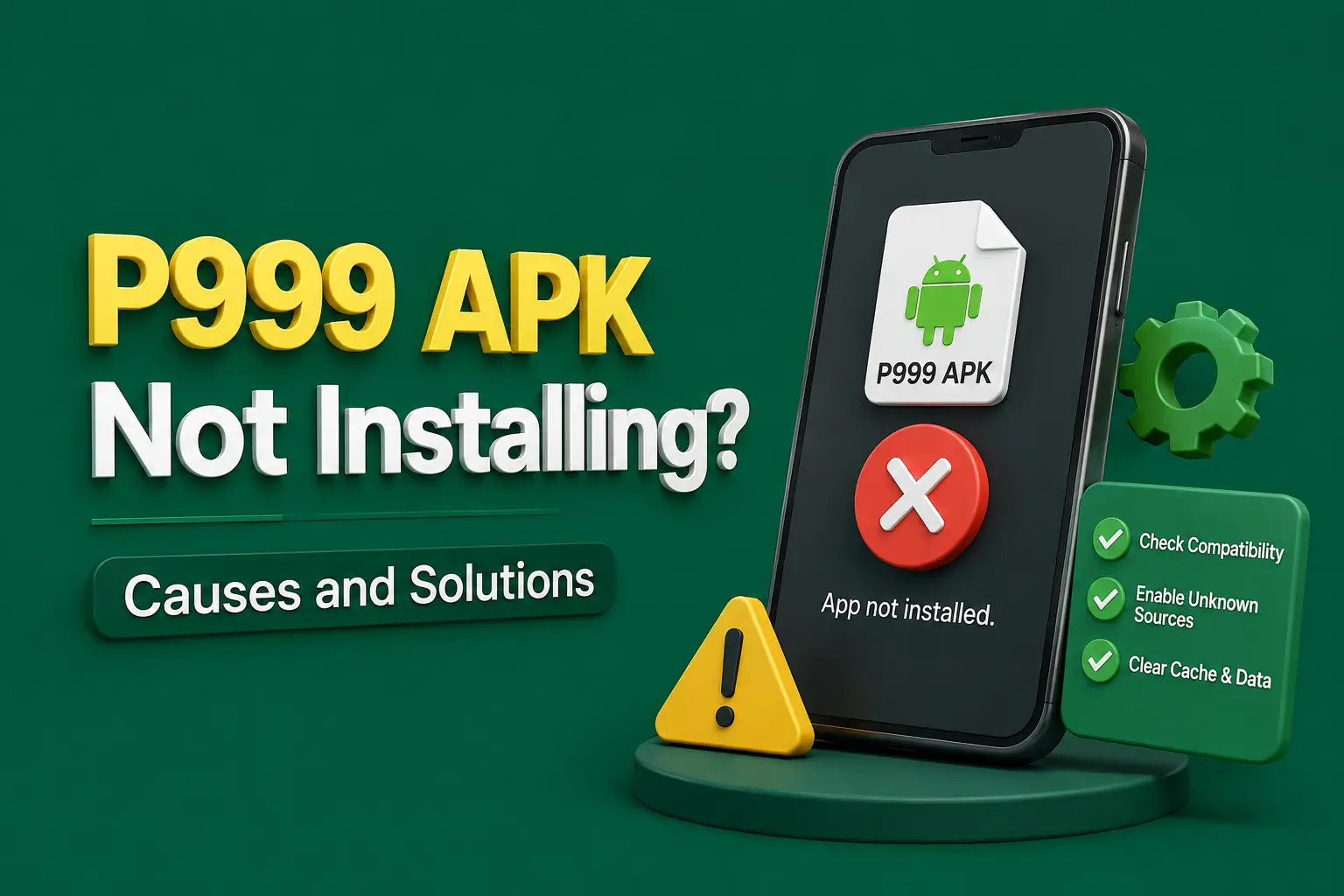
A P999 Play Protect warning is one of the most common messages people see when they try to install the app from a downloaded APK. The screen may say the app was blocked, that the developer is unknown or, more seriously, that a harmful app was detected.
This guide explains what Play Protect does, why gambling APKs trigger it so often, how to check the file yourself and what to do if you already installed something that was flagged.
Is the P999 APK Safe if Play Protect Warns You?
A P999 APK is not proven safe or unsafe by a Play Protect warning alone. An unknown developer or unrecognised app prompt is common for sideloaded files and calls for careful checks. A harmful app detected verdict is more serious and should be treated as a reason to cancel the installation and delete the file.
In both cases the safe default is to pause, confirm where the file came from and keep Play Protect switched on.
P999 Play Protect Quick Facts
| Question | Answer |
|---|---|
| Is P999 on Google Play in Pakistan? | No verified real-money listing |
| Why warnings appear | Sideloaded APK from a developer Google does not recognise |
| Published file hash | Not published by a verified source |
| Should Play Protect be turned off? | No — keep it active |
| Most serious message | Harmful app detected — cancel and delete |
| Last updated | October 2026 |
Key Takeaways
- A Play Protect warning alone does not prove a P999 APK is safe or unsafe.
- Unknown developer prompts are common for sideloaded APKs and call for careful checks of the file's source.
- A harmful app detected verdict is serious: cancel the installation and delete the file.
- P999 triggers Play Protect because it is sideloaded, often newly signed and may request sensitive permissions.
- Keep Play Protect switched on; no verified source publishes a P999 file hash to check against.
What Google Play Protect Does
Play Protect is built into Android phones that have Google Play services. It checks apps from Google Play and from other sources, both when you install them and through regular scans afterwards.
When it finds something it does not recognise or considers risky, it can warn you, block the install, disable the app or remove it. It also sends samples of unknown apps for deeper analysis if you allow it, which helps Google spot new threats faster.
Why P999 Gets Blocked by Play Protect
It Is Not From the Store
Real-money gaming apps are rarely approved on Google Play in Pakistan, so P999 is usually installed as an APK. Sideloaded apps get stricter scrutiny by default.
Unknown or New Developer Signature
If the signing key has little history with Google, the app is treated as unrecognised. Frequent new builds and changing domains add to this.
Sensitive Permissions
Apps that ask for SMS, accessibility, overlay or install-other-apps permissions are flagged more often, because malware uses the same features.
Repackaged or Modified Files
Fake mirrors and hack versions often inject extra code into a real app. Play Protect is designed to catch these, and they are a common source of harmful app verdicts.
Unknown App Warning vs Harmful App Verdict
| Message Type | What It Usually Means |
|---|---|
| Install unknown apps permission prompt | Android asking you to allow a browser or file manager to install APKs. Routine, not a scan result |
| Unsafe app blocked / unknown developer | Play Protect does not recognise the app or its developer. Verify the source before continuing |
| Send app for a security scan | Play Protect wants to analyse the unknown app. Allowing it is the safer choice |
| Harmful app detected | The app matches known harmful behaviour. Do not install, delete the file |
| App disabled or removed after install | A later scan found a problem. Do not reinstall it from the same source |
The exact wording varies by Android version and phone brand. Read the full message instead of tapping through it.
How to Check a P999 APK Before Installing
Confirm the Source
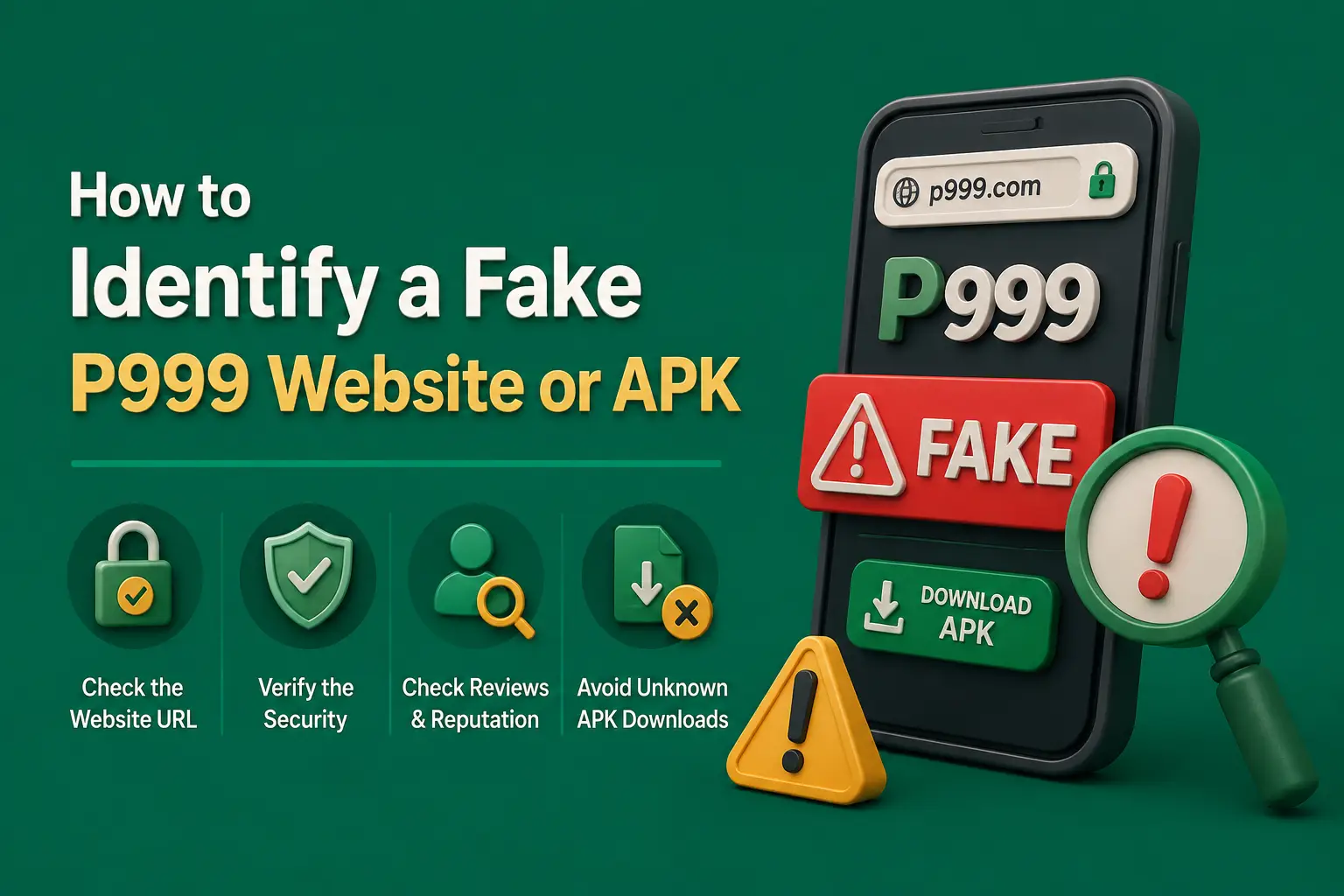
Ask where the file came from. A link forwarded on WhatsApp or Telegram, a pop-up download or an unfamiliar mirror site is a poor starting point. Only use the verified source, and check the full domain.
Inspect the File Name and Size
The file should end in .apk and not be hidden inside a ZIP or disguised as a document. If the verified source lists a size, compare it.
Compare the Hash Where Published
Some download pages publish a checksum such as SHA-256. If one is provided, use a file hash tool to calculate the hash of your download and compare. Any difference means the file is not the one published.
Run a Multi-Engine Scan
Online multi-engine scanners check one file against many antivirus engines at once. Upload the APK and read the result. Several detections, especially labels like trojan, spyware or banker, are a clear stop sign.
Let Play Protect Scan It
If Play Protect offers to scan the app, allow it. Do not disable protection to skip the check.
Review Permissions After Install
Open Settings > Apps > the app > Permissions and remove anything unnecessary. Be wary of:
- SMS and call log access
- Accessibility service
- Display over other apps
- Install unknown apps
- Contacts and microphone
Never Do These to Get Past a P999 Play Protect Warning
- Turn off Play Protect permanently
- Install a hack, mod or predictor version that promises better results
- Grant accessibility access because the app insists
- Follow a stranger's screen-sharing instructions to approve the install
- Leave unknown-app installs allowed for your browser after you finish
- Ignore a harmful app verdict because a website says it is a false alarm
If you paused Play Protect briefly for any reason, switch it back on straight away and run a full scan.
If You Already Installed a Flagged App
- Disconnect from the internet.
- Uninstall the app from Settings > Apps.
- Remove any device admin or accessibility access it was given.
- Run a Play Protect scan from the Google Play profile menu.
- Change passwords for your wallet, email and P999 account from a safe device.
- Check Easypaisa, JazzCash and bank history for unknown transactions.
- Contact your wallet provider immediately if money moved without approval.
- Consider a factory reset if suspicious behaviour continues.
Frequently Asked Questions
P999 is usually installed as an APK from outside Google Play, often signed by a developer Google does not recognise. Play Protect treats such apps cautiously. Modified copies from fake sites are flagged even more often because they contain extra code that matches harmful behaviour.
The genuine app is not automatically a virus, but many files labelled P999 come from unofficial mirrors and some are repackaged with harmful code. Verify the source, scan the file with a multi-engine scanner and never install a copy that Play Protect marks as harmful.
No. Turning off Play Protect removes protection against harmful apps on the whole phone, not just for one install. If the file is from the verified source, the warning can usually be reviewed without disabling protection. A harmful app verdict should never be bypassed.
Unsafe app blocked usually means Play Protect does not recognise the app or developer, so it asks you to be careful. Harmful app detected means the app matches known malicious behaviour. The first calls for checks, the second means cancel the install and delete the file.
No single test proves safety. Confirm the download source and domain, compare the file hash if the source publishes one, run a multi-engine scan, let Play Protect check it and review permissions after installation. Avoid any file described as hacked, modded or a predictor.
Do not reinstall the same file. Run a full Play Protect scan, review your wallet and account activity and change passwords from a safe device. If you still want access, obtain the app only from the verified source and check it again before installing.
Conclusion
A P999 Play Protect warning is common because the app is sideloaded, but the type of warning matters. An unknown developer prompt calls for checks. A harmful app verdict means stop.
Keep Play Protect on, verify the source, scan the file and review permissions. If a flagged app is already on your phone, remove it and secure your wallet and accounts straight away.
Related guides
Neighbouring problems that tend to arrive together.
P999 Aviator Predictor: Why Signals and Predictor Apps Fail
No predictor app or signal group can tell you where the next Aviator round will stop. Here is how these schemes make money from players instead.
P999.com and Other P999 Domains: How to Tell Them Apart
Many domains carry the P999 name. This guide does not say who owns them; it shows you how to check any of them against the account you already have.
P999 Link: Finding and Checking the Real Game Link
P999 links travel through referrals, chats and short URLs. Here is how to read one before you tap it, and how to keep hold of the right address.